 is monitoring connections with several databases
simultaneously and sends NT and E-mail messages to DBAs to alert them
about the lost connection
is monitoring connections with several databases
simultaneously and sends NT and E-mail messages to DBAs to alert them
about the lost connection DBMonitor 2.3 is monitoring connections with several databases
simultaneously and sends NT and E-mail messages to DBAs to alert them
about the lost connection
|
If you are having troubles downloading - please contact us and we will be happy to send you electronic media with DBMonitor. BIK Information Services, Inc. 7101 Grinnell Dr. Derwood, MD 20855 USA ph: 240-453-9510, fax: 240-453-9511 e-mail: support@bikinfo.com |
|
To read about our pricing press here |
Back to BIK Information Services, Inc. Home Page
DBMonitor Version 2.3 is a small-footprint program, designed primarily
for monitoring connections with the databases.
Mail Setup

Version 2.3 of DBMonitor allows you to send e-mail messages only through MAPI compliant e-mail software.
If you have "Use existing connection" property checked DBMonitor assumes you have your e-mail client up and running and will try to send e-mail notification (if necessary) using the open mail session. In such a case you do not need to enter userid and password fields. If you do not want to rely on e-mail being up then do not check this check box and provide information for UserId and Password fields. In this case should a notification message must be sent, DBMonitor will connect to e-mail client using provided login information as a new session and sill send the message out. Depending on your installation your UserId may turn out to be your E-mail profile name.
Database Setup

To add a new database to your setup simply click on the empty space next to Mail tab. If you want to delete one of your database definition tabs later just right-click on it and answer 'Yes' to the confirmation question.
PLEASE NOTE, THAT 30-DAY FREE TRIAL VERSION OF THE SYSTEM WILL ONLY USE
TWO DATABASE PROFILES. THE REGISTERED VERSION CAN SERVICE
AN UNLIMITED NUMBER OF DATABASES.
Property "Profile Name" allows you to specify the tabpage text. You should have unique tab names to be able to quickly tell them apart.
Property "Profile Title" allows you to specify the database name as it will appear in "Select database" dialog when you select databases you want to monitor.
Property "Autoconnect" if checked means that when you select this database to be monitored DBMonitor will not be asking you about userid and password, but instead will try to connect automatically (using userid and password you specify on this tab). This option is very convenient when you add dbmonitor to your Windows StartUp folder, or just want to cut down the time it takes to start the monitoring.
Property "DBMS" defines what kind of database engine you are running. Note that you can mix and match database engines, like Oracle for one database and MS SQL Server for another one etc. That is probably not the case if you are a DBA, but if you are an IS manager DBMonitor maybe your only tool that provides you with one view of everything you are responsible for.
Property "Servername" defines the name of the specific server the database resides on (or for Oracle - TNS name):
Property "Database" defines the name of the specific database to connect to (if it was not specified in Servername, as is the case for Oracle):
Property "DBParm" defines the database specific information necessary for successful connection. Usually it is used for ODBC type of connections.
Property "UserId" specifies userid that will be used to connect to the database.
Property "Password" specifies password that will be used to connect to the database.
Property "E-mail Notification On"specifies whether you want to send e-mail notification when a connection attempt fails or when connection is reestablished. If checked it requires the computer DBMonitor is running on to have MAPI compliant e-mail (such as Microsoft Mail).
Property "NT Notification On"specifies whether you want to use Windows NT NET SEND command when a connection attempt fails or when connection is reestablished. If checked it requires the computer the program is running on to run Windows NT 3.51 or Windows NT 4.0 workstation or Server.
Property "Logging On" specifies whether or not you want to log your connections to keep a hardcopy file. If checked property "log_file_name" also needs to be specified. If this property is unchecked , the system will only show results on the screen.
Property "Log File Name" specifies the name of your log file. It is recommended that you keep a database log for each database separately.
Tab page "(Net Send) "DB Down" Setup
Property "Message Text" specifies the text of a message sent via NET USE command if DBMonitor discovers database connection to be down. Prior to sending the message the text will be scanned and certain parameters substituted with the actual values. The parameters are: #servername#, #database#, #time#, #errcode# and #errormessage#.
Properties "Username" specify the username(s) or computername(s) as used in NET SEND command (see Windows NT help). To add another name to the list just press "down arrow". To delete a name just erase its contents from the tab.
Tab page "(Net Send) "DB Up" Setup
Property "Message Text" specifies the text of a message sent via NET USE command if DBMonitor discovers database connection to be up. Prior to sending the message the text will be scanned and certain parameters substituted with the actual values. The parameters are: #servername#, #database#, #time#, #errcode# and #errormessage#.
Properties "Username" specify the username(s) or computername(s) as used in NET SEND command (see Windows NT help). To add another name to the list just press "down arrow". To delete a name just erase its contents from the tab.
Tab page "(E-Mail Send) "DB Down" Setup

Property "Message Subject" specifies what will appear in a SUBJECT field of an e-mail message in case the connection failed
Property "Message Text" specifies the text of a message sent via NET USE command if DBMonitor discovers database connection to be down. Prior to sending the message the text will be scanned and certain parameters substituted with the actual values. The parameters are: #servername#, #database#, #time#, #errcode# and #errormessage#.
Properties "Username" are for documentation purposes and should contain the full name of the addressee (free format).
Properties "E-mail Address type" have only two possible values "TO" and "CC". They indicate in what place of address fields the person's address will be displayed.
Properties "Address" indicate the e-mail address of an addressee. The address may have a form smpt:yourname@your.com
Tab page "(E-Mail Send) "DB Up" Setup
Property "Message Subject" specifies what will appear in a SUBJECT field of an e-mail message in case the connection has been reestablished
Property "Message Text" specifies the text of a message sent via NET USE command if DBMonitor discovers database connection to be down. Prior to sending the message the text will be scanned and certain parameters substituted with the actual values. The parameters are: #servername#, #database#, #time#, #errcode# and #errormessage#.
Properties "Username" are for documentation purposes and should contain the full name of the addressee (free format).
Properties "E-mail Address type" have only two possible values "TO" and "CC". They indicate in what place of address fields the person's address will be displayed.
Properties "Address" indicate the e-mail address of an addressee. The address may have a form smpt:yourname@your.com
Tab page "Do Not Disturb" Setup
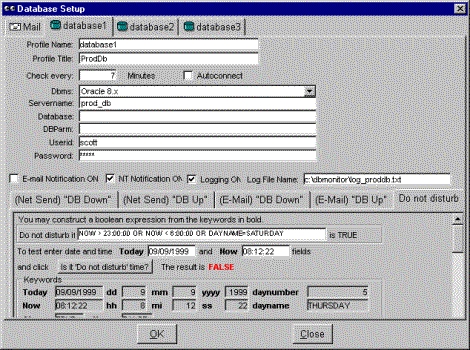
This page specifies conditions for "do not disturb" time.
Property "do not disturb" contains expression that is validated every time DBMonitor checks connection status. If expression is true then a message will not be sent under the circumstances it would have been sent otherwise. This feature is supposed to cover times of scheduled maintenance procedures when DBA or IS Manager knows about temporary unavailability of the database.
When working on this property you may want to test how it works prior to saving the setup. In such case you can enter the test date in a "Today" field and/or the test time in a "Now" field and click on "Is it do not disturb time?". Time should always be in hh:mm:ss world time form (i.e. 8:03 am should be represented as 08:03:00, and 11:25 pm as 23:25:00). The tab itself contains a few examples how to setup this expression. There is no limit to how many intervals you specify in this expression.
Running DBMonitor
After installation you will have a default shortcut installed in your "programs" folder. The "target" property of this shortcut will look something like this:
C:\dbmonitor\dbmonitor23.exe c:\dbmonitor\dbmonitor.ini
You may place dbmonitor.ini file anywhere you want. When you doubleclick on this shortcut DBMonitor will start. For a few moments you will see a Flash screen and then DBMonitor's icon will appear in a system tray:
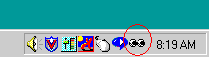
You can doubleclick and start the setup.
After the initial setup if you want DBMonitor to automatically start monitoring process when you doubleclick on its shortcut, you can modify the short cut to read like this:
C:\dbmonitor\dbmonitor23.exe -a c:\dbmonitor\dbmonitor.ini
In this case when DBMonitor starts automatically it tries to connect to all the databases which profiles have "Autoconnect" property checked.
If you want to manually start monitoring you must click on "Open" icon and select database profil(s) from the screen that looks like this:

Good luck and we at BIK Information Services, Inc. hope you will enjoy working with our program.